TeXpresso manual
TeXpresso is a LaTeX editor in the browser that typesets as you type: there is no compile button to press, and the pages follow your edits within moments.
It runs XeLaTeX, or LuaLaTeX, entirely in your browser, with the packages of TeX Live. Your documents stay on your device: there is no account, and nothing to install.
Getting started
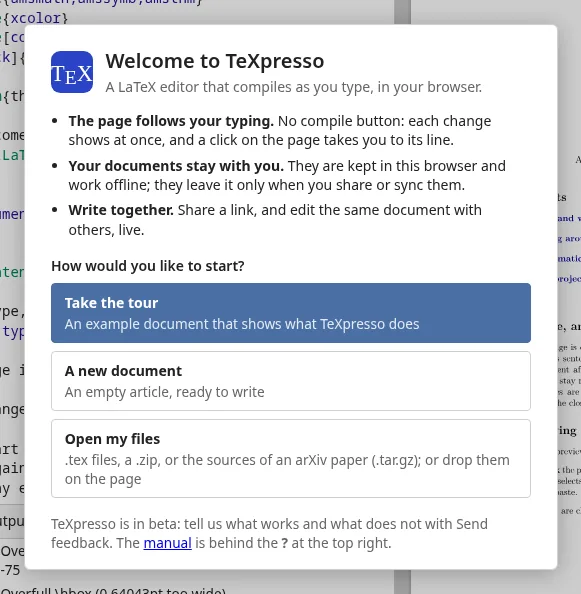
The first time, a welcome offers three ways to start: Take the tour, an
example document (manual.tex, a short tour written in LaTeX), A new
document, or Open my files.
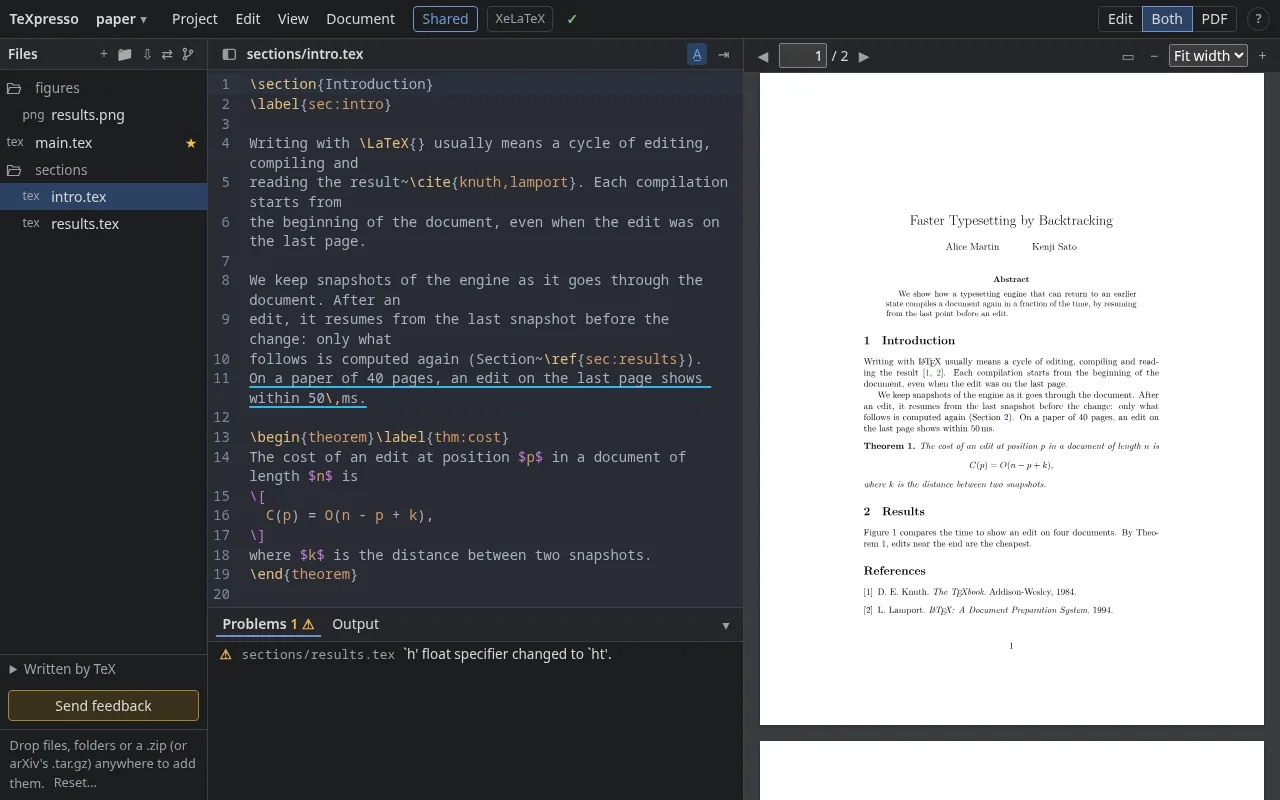
In the tour, change a sentence, and watch the page on the right follow. The window has three parts:
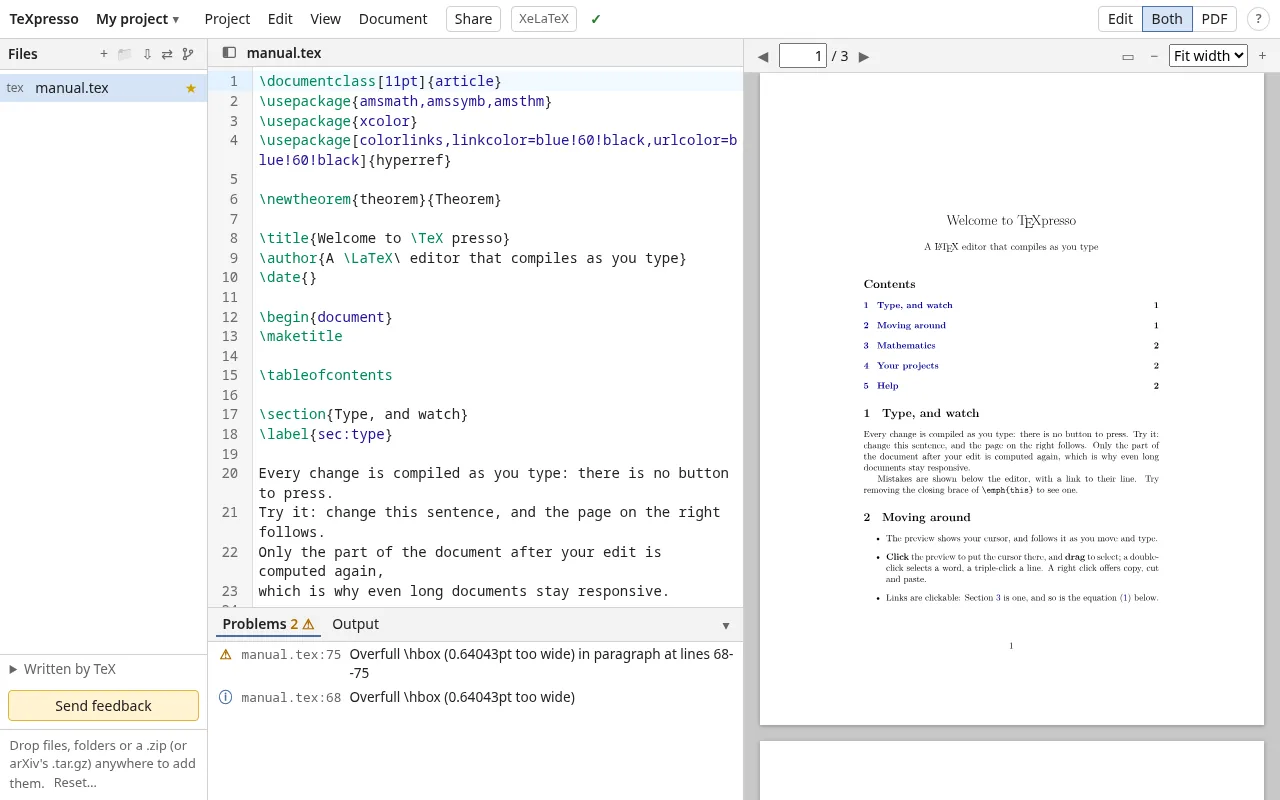
- Files, on the left: the files of the project. The sidebar button, at the left of the editor's bar, folds them away for more room, and brings them back.
- The editor, in the middle, with the problems of the document below it.
- The preview, on the right: the pages, as they will print.
Above them, from the left: the name of the project (a click lists your projects), the menus Project, Edit, View and Document, which hold every action with its keyboard shortcut (F10 reaches them from the keyboard), Share, the engine (XeLaTeX), the status (✓), and at the right Edit · Both · PDF and ?.
To write your own document, create a project (Project ▸ New project…),
or bring one you have: drop its folder or its .zip on the window.
Reset…, at the bottom of the file list, brings the example back.
This manual opens from ? at the top right of the app, in a tab of its own: keep it next to your document.
The first document takes a little longer: the app downloads the engine and the packages it needs. They are kept, and later documents start quickly, even offline.
How to work
TeXpresso is made for writing with the result in sight, alone or with coauthors. A typical project goes like this:
- Start a project. Drop the folder or the
.zipof a document you have on the window, and choose Open it as a new project; or create an empty one with Project ▸ New project…. The project and its files stay in your browser (Projects). - Write, and watch. Type in the editor: the pages follow within moments. Keep your eyes on the text; glance at the page when you want to see it. The pages show your cursor, and a click on them puts it there (Writing).
- Fix mistakes as they come. An error shows below the editor as soon as you make it, with a link to its line; the pages keep the last good state of the rest (Errors and output).
- Bring in your coauthors. Share makes a link; whoever opens it edits with you, at the same time, each with their color (Editing together). Working at different hours? Keep the changes on the server when the others leave: whoever comes back gets them (Changes kept for the absent).
- Keep a copy. Download the project as a
.zip(⇩, or Project ▸ Download as .zip) from time to time, and to send it to a journal or a colleague who compiles elsewhere: it holds your sources, not the PDF. Or keep it in a folder of your disk, synced as you work (A folder on your disk), or in your Dropbox (A folder of your Dropbox), or commit it to a repository of GitHub (GitHub).
For slides, the same, with the preview showing one slide at a time, and full screen to present (Slides).
Writing
Every change is typeset as you type. Only the part of the document after your edit is computed again, and while you type, only up to the pages on screen: the ones after follow when you pause. Long documents stay responsive. When the edit changes references, the table of contents or citations, the app compiles again on its own until they settle.
- Syntax highlighting for LaTeX, matching brackets, and brackets closed as you open them.
- Search and replace: Ctrl+F (⌘+F on a Mac). Edit ▸ Go to line… jumps to a line.
- Undo keeps the history of each file while the page is open.
- Vim keys, if you prefer: turn them on in the settings.
Your edits are saved in the browser as you go. There is nothing to save by hand; to keep a copy elsewhere, download the project.
From the source to the page, and back
- The preview shows your cursor (or your selection) in the pages, and scrolls to keep it on screen as you move and type.
- Click the pages to put the cursor there; drag to select, a double-click selects a word, a triple-click a line, and Shift+click extends the selection. A right-click offers cut, copy, paste, undo and redo. On a touch screen, a long press jumps to the source.
- What you type shows in the pages at once, before TeX catches up (Show typing immediately, in the settings); TeX's own result replaces it within moments.
- With Show the cursor in the preview turned off, Alt+Enter in the editor (or ⇥ in its bar) shows the current line in the preview, and a double-click on the pages goes to the source.
The preview
The bar of the preview moves between pages (◀ ▶, or type a page number) and sets the zoom: Fit width, Fit page, or a size. Links in the document work: a double-click on a reference or an entry of the table of contents takes you to its target, and on a web link opens it in a new tab (a click puts the cursor there, as in the text around; on a touch screen, a tap follows the link).
- Edit · Both · PDF, at the top right, shows the editor only, both, or the preview only, which then gets the whole width (also in View). Alt+Enter in the editor brings the preview back. (On phones and tablets, the same choice is at the bottom of the screen.)
- Drag the border between two panes to resize them; double-click it for the default size. Sizes are remembered.
- To have the preview on the left, see the settings.
- Project ▸ Export PDF downloads the PDF of the document, made as
xelatexwould (withxdvipdfmx): fonts embedded, links and bookmarks working. It is made from what the preview shows, once the last edit is compiled. PostScript images (.eps,.ps) are left out, with a warning: convert them to PDF (epstopdf, or most drawing programs) to have them in the PDF.
Errors and output
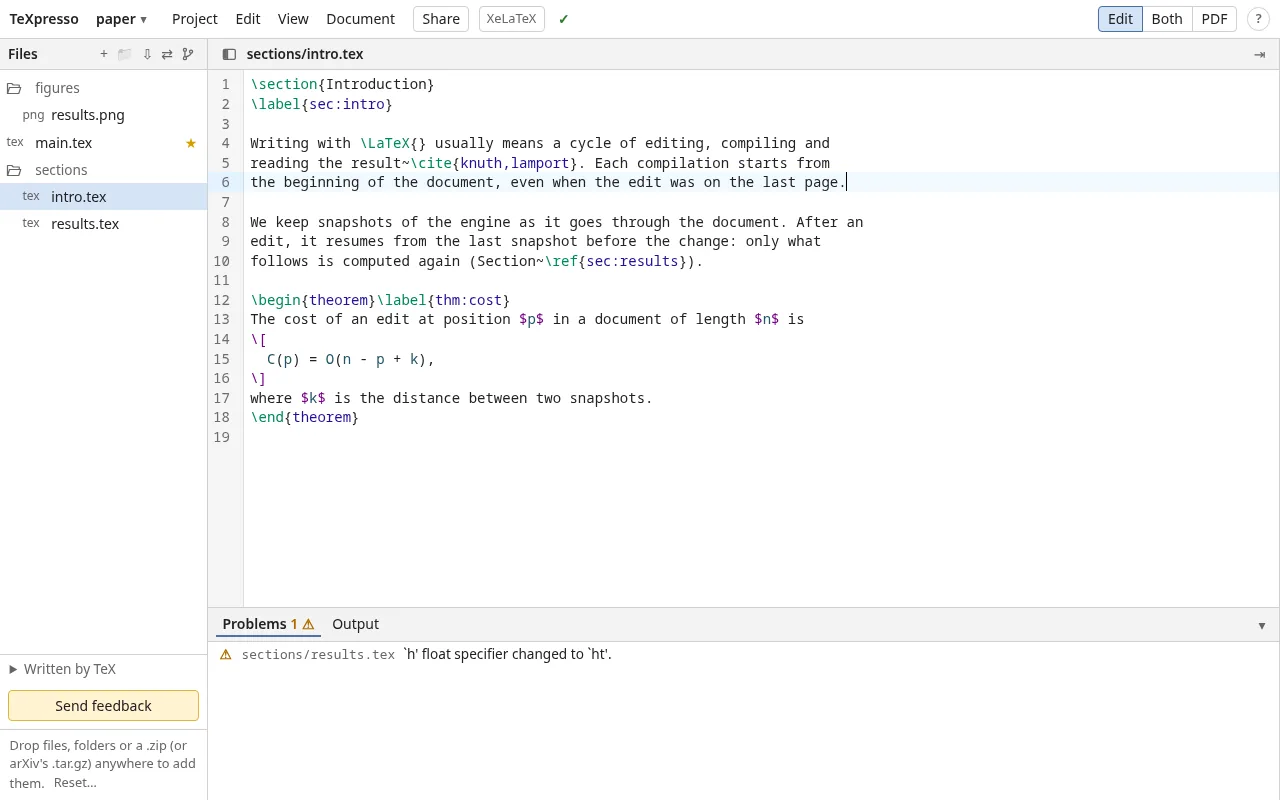
Below the editor, Problems lists the errors and warnings of the document, with their file and line. Click one to go to its line. Output shows the log of TeX, as a terminal would. The ✓ at the top turns into ✕ when something goes wrong; hover over it for details. ▾ folds the panel away, to give the editor its height.
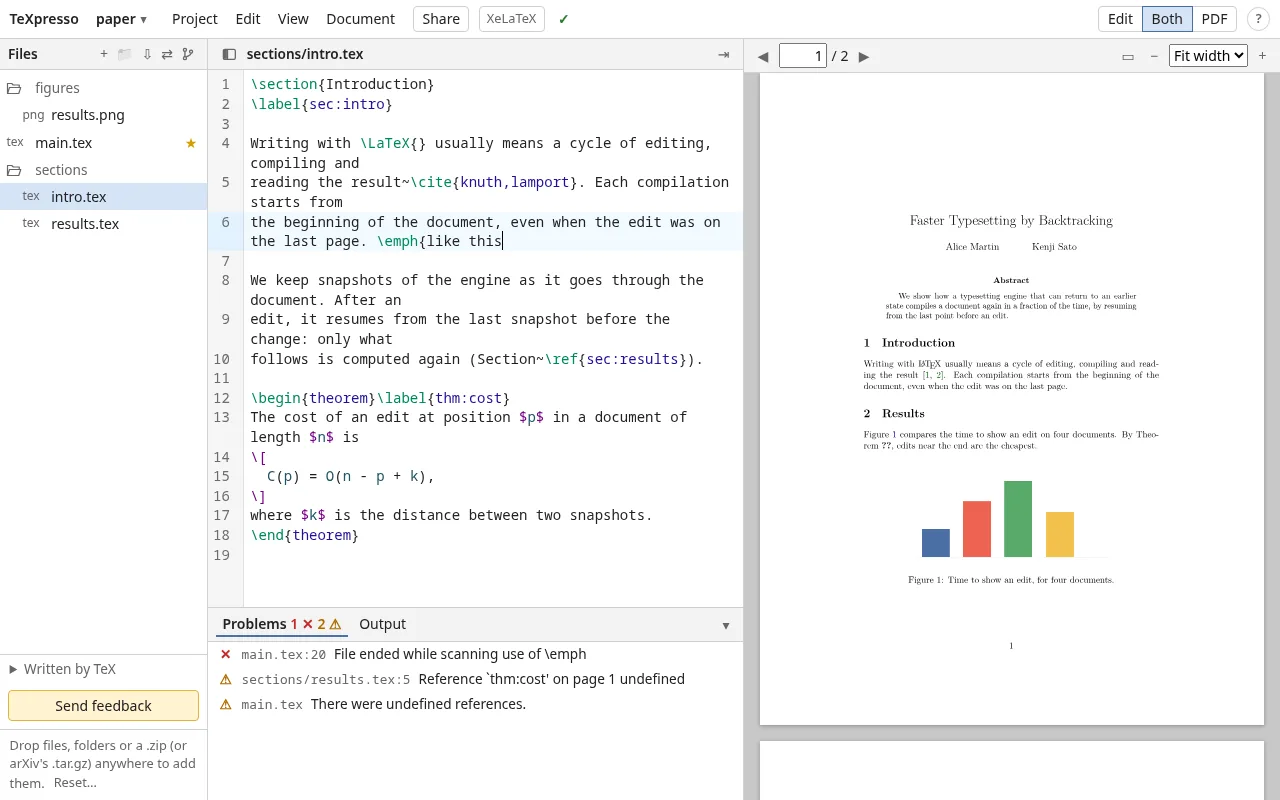
\emph{ left open: the error, and the undefined reference it causes.Document ▸ Rebuild from scratch compiles the document again, with empty
auxiliary files (.aux, .toc…). Use it if references or the table of
contents ever look wrong.
When the errors show that the document was written for the other engine (\directlua
under XeLaTeX, say), or when its first lines ask for it (% !TEX program = lualatex),
Problems says so, with a button to switch; the engine at the top is
highlighted meanwhile (Engines).
Files
A project is a folder of files: .tex sources, packages and classes of your own
(.sty, .cls), bibliographies, pictures (PNG, JPEG, PDF).
- + creates a file; 📁 uploads a folder;
Project ▸ Upload files… uploads files, or a project as
.zip. You can also drop files, folders or a.zipanywhere on the window. - ⇩ downloads the whole project as a
.zip. - A
.zipyou bring asks what to do with it: open it as a new project, add its files to this one, extract it into a folder of the project, or keep it as it is. - The sources of an arXiv paper open the same way: its download (Other formats,
Download source) is a
.tar.gz, or a gzipped.tex, sometimes saved without an extension. Other.tar,.tar.gzand.tgzarchives too. - Pictures and PDF files show as such when you open them; the others are listed with their size.
- The main file, marked ★, is the one TeX compiles: ★
next to another
.texfile makes it the main one, as does Document ▸ Main file. - Next to each file, ✎ renames it and ✕ deletes it.
- A click on a folder closes it (its icon closes, with the number of files in it) or opens it. Closed folders stay so in this browser; one opens again when a file in it is opened, or when you hold a dragged file over it.
- A right-click on a file opens, renames, downloads or deletes it, or makes it the main file; on a folder, it creates a file or a folder in it, renames or deletes it; below the files, it creates a file or a folder. A folder stays when its last file leaves it.
- Drag a file or a folder onto a folder to move it there, or below the files to move it to the top. Files dropped from your computer onto a folder go in it. In Chrome and Edge, a file dragged out of the window onto your desktop or a folder is saved there.
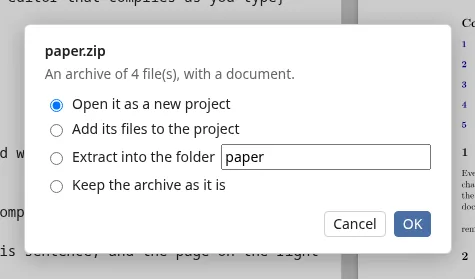
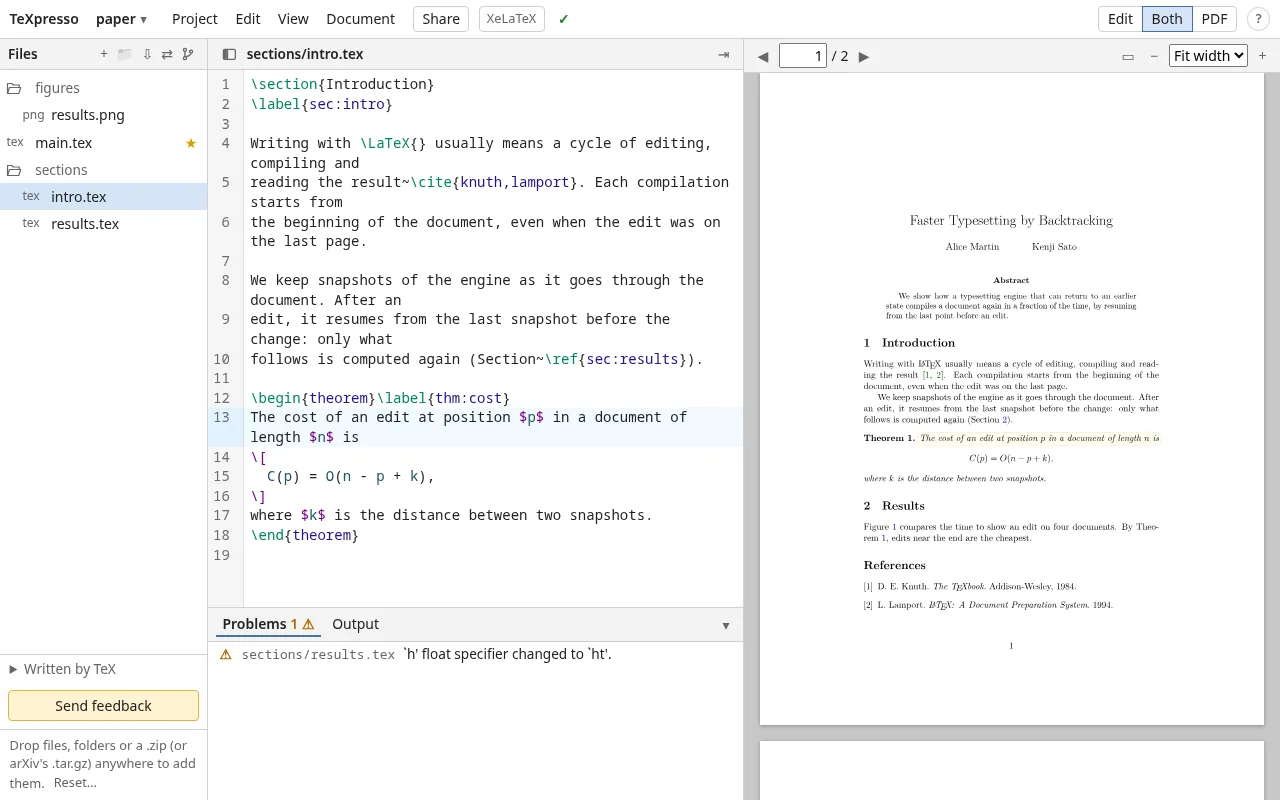
.zip.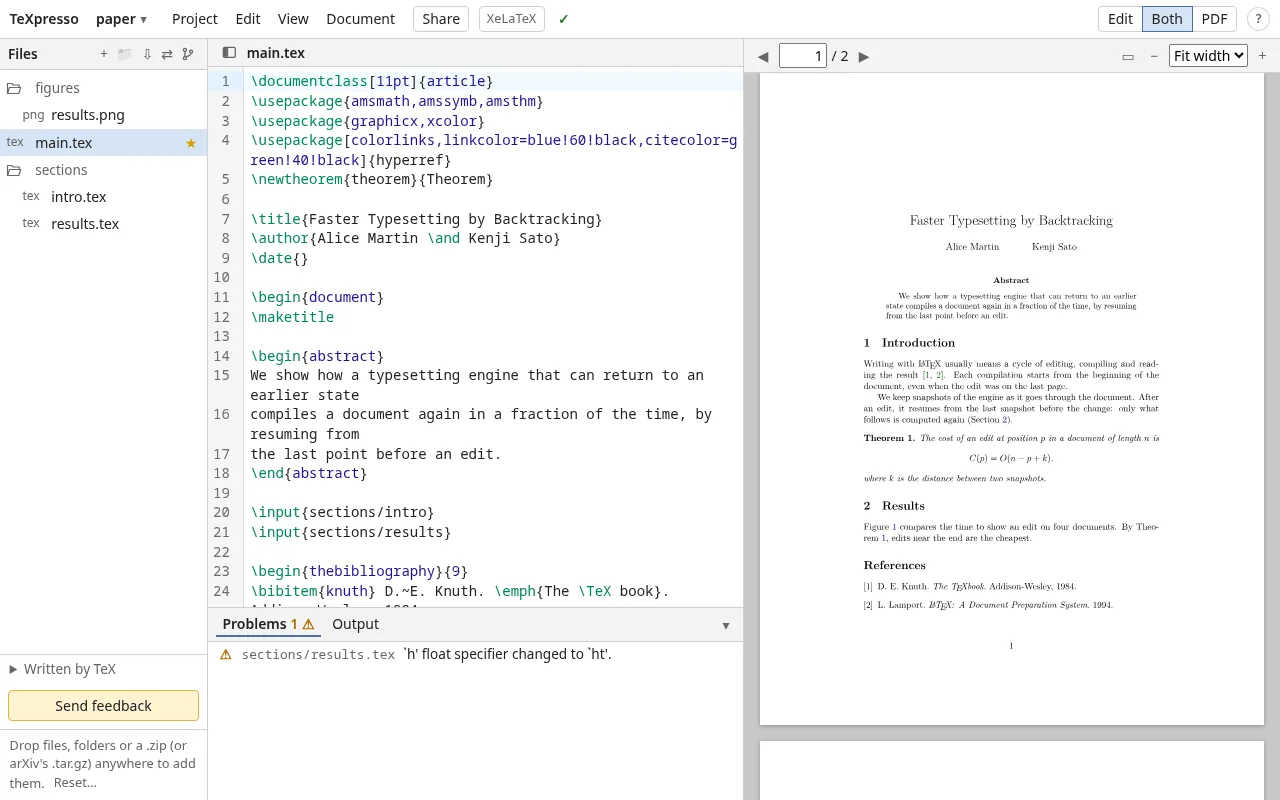
.zip: main.tex (★, the main file), sections in a folder, a figure.A folder on your disk
In Chrome, Edge or Opera on a computer, ⇄ links the project to a folder
on your disk (also Project ▸ Sync with a folder…), synced both ways while the
project is open: an edit in TeXpresso is written to the
folder within a few seconds, and a change in the folder (another editor, git pull)
comes into the project. The first time, if both have files, you choose: open the folder's files
(the project's are removed), or merge the two, keeping the folder's or the project's version of
a file that differs.
Other browsers (Firefox, Safari, and all browsers on phones and tablets) do not let a page write to a folder: there, ⇄ is greyed, and hovering or clicking it says so.
- Left out: hidden files and folders (
.git...), the outputs of a LaTeX on your computer (.aux,.log, the PDF of a document next to its source...), and files over 50 MB. - A file changed on both sides at once keeps the folder's version; the project's is saved
next to it as
NAME.conflict.tex. - Removing many files at once (a reset, the folder emptied) asks first; no stops the sync, and nothing is deleted.
- The browser may ask again, at your next visit, for the right to edit the folder: Reconnect under the files. Installed as an app, it can remember it.
- ⇄ stays pressed while the project is synced; pressed again, it stops the sync, and the files stay on both sides.
A folder of your Dropbox
☁, next to ⇄, syncs the project with a folder of your Dropbox the same way, in any browser: on another computer, the same folder brings the project back, and the Dropbox app keeps it on your disks too. The first time, a window asks you to log in to Dropbox and to let TeXpresso use your files; then you choose the folder (or make a new one), and, if both have files, how to join them, as for a folder on disk.
- Changes on Dropbox come within seconds; the project's go there within a few seconds.
- The same files are left out, and a conflict is saved the same way.
- The login is kept in this browser, for all its projects. Disconnect, in the dialog of folders, logs out; access can also be removed from your Dropbox account settings (Connected apps): then Reconnect shows under the files.
- A project syncs with one place at a time: a folder on disk or a folder of Dropbox.
GitHub
The branch button, after ☁, links the project to a repository of GitHub (a branch of it, or a folder of that branch). Unlike a synced folder, nothing goes there as you type: under the files, Commit… sends the changes of the project as one commit, with the message you write, and Pull brings the commits made there (highlighted when there are some, checked every minute). The status says how many files changed since the last commit or pull.
TeXpresso reaches GitHub with a personal access token that you make on GitHub, kept in this browser only, for all its projects: in GitHub's settings, Developer settings, Fine-grained tokens, Generate new token; give it access to the repositories of your projects (or all of them), and, under Permissions, add Contents set to Read and write: a new token does not have it, and without it GitHub refuses to show the files of a repository (Pull) or to take new ones (Commit). The first time, the branch button asks for the token.
- The repository may be empty: the first commit makes its branch. A branch that does not exist yet is made from the default one.
- The first time, if both have files, you choose as for a folder: open the repository's files, or merge the two.
- A commit while the branch moved pulls first. A file changed on both sides takes the
repository's version, and the project's is saved next to it as
NAME.conflict.tex: nothing is committed then; merge the two, delete the copy, and commit. - The same files are left out as with a folder; those of the repository stay there.
- A project can be synced with a folder or Dropbox, and linked to GitHub too.
- The token refused (expired, or removed on GitHub): the next pull or commit asks for another. Disconnect, in the dialog of repositories, forgets it.
- The branch button stays pressed while the project is linked; pressed again, it unlinks, and the files stay on both sides.
Files written by TeX
Under the files, Written by TeX lists the files the document writes:
.aux, .toc, .out... The list starts folded: click its title to
unfold it. A click on a file shows it; a right-click offers more.
- ⚑ keeps a file for your next visit. Those LaTeX reads back
(
.aux,.toc,.lof,.lot,.out, BibTeX's.bbl, and beamer's.nav,.snm) are kept by default: references and the table of contents are right as soon as the document shows, instead of after a few passes. - Clean (or Clean all) forgets a file and runs
the document again without it, as deleting a broken
.auxwould on your computer. - Add to the project, or dragging a file onto the files, copies it into the project (to download it with the project, or to give it to arXiv).
- As on your computer, a file TeX writes replaces the file of the same name, one of the
project too: TeX reads its own version from then on, until you edit the project's. A file of
the project TeX rewrote with other contents shows in italics with
⟳: a click updates it with TeX's version (a
.bblbefore a submission, say). Until then, TeX's version is kept for your next visit.
Bibliographies (BibTeX)
With \bibliography{refs} and \bibliographystyle{plain}, BibTeX runs by
itself between the passes of LaTeX, as latexmk would: when a citation, the style or the
list of databases changes, or when you edit a .bib file of the project. Other edits do
not run it. Its .bbl and .blg (its log, with its warnings) are under
Written by TeX. Styles come from TeX Live (plain,
alpha, abbrvnat...), or from a .bst file of the project.
A project with a .bbl but not the .bib it was made from (as on arXiv)
uses that .bbl: BibTeX runs only when all its databases are there.
Projects and engines
The name of the project, at the top left, lists your projects, the current one first, then the last edited: a click opens one, and each has Rename, Duplicate and Delete; New project creates one. The same actions, for the current project, are in the Project menu.
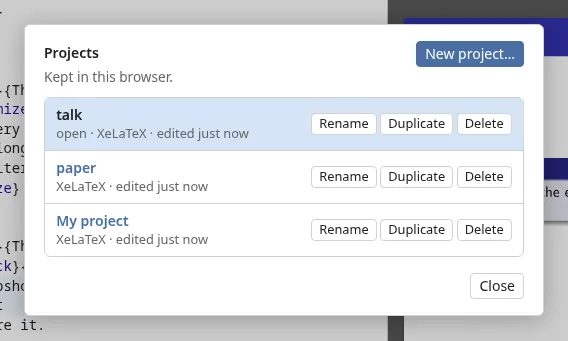
Projects live in this browser only. Clearing the site's data, a private
window, or another browser or device does not have them. Download a .zip of the
projects you care about from time to time, or share them to have a copy
in another browser.
A project is edited in one tab at a time, to avoid conflicting changes. Opening it in another tab moves the editing there; the first tab says so, and Edit here brings it back; or it opens another project, or a new one, instead.
Each project is compiled with a version of TeX Live (Document ▸ TeX Live, or the settings): the newest for new projects. A project keeps its version until you change it, so that its pages do not change under you.
Engines: XeLaTeX and LuaLaTeX
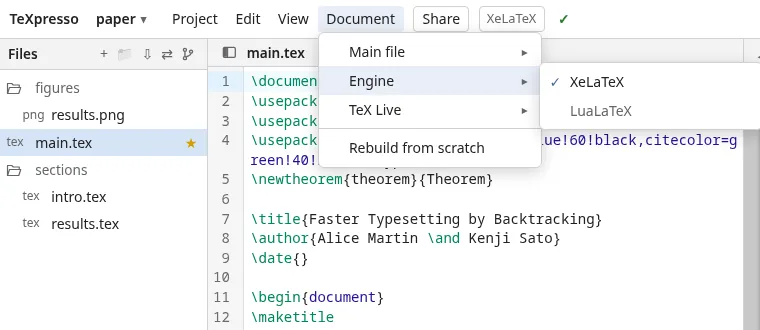
A project is compiled with XeLaTeX unless it says otherwise. The engine shows at the top, next to Share: a click on it, or Document ▸ Engine, switches to LuaLaTeX, with the versions of TeX Live that have it. The switch is the project's: for a shared project, it changes for everyone.
- Documents written for pdfLaTeX usually compile with XeLaTeX.
- A document that needs LuaLaTeX (
\directlua, or a package that requires LuaTeX) gets a suggestion in Problems, with a button to switch. - A project opened from a
.zipwhose main file starts with% !TEX program = lualatexis compiled with LuaLaTeX from the start.
Slides (beamer)
For beamer presentations:
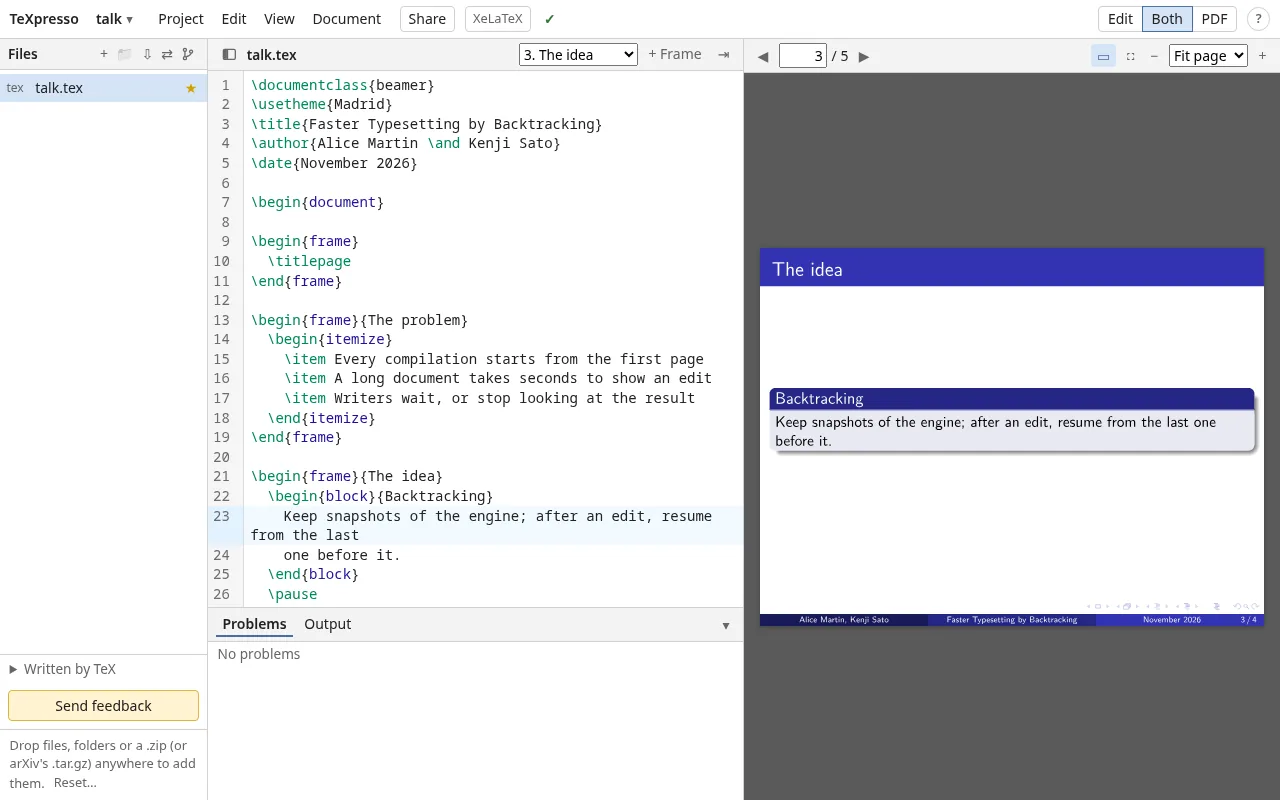
- The preview shows one slide at a time, following the frame you are editing; it is on by
default for
beamerdocuments, and ▭ in the bar of the preview turns it off or on. The arrow keys, Page Up, Page Down, Space, Home and End move between slides. - ⛶ presents: the slides in full screen. Esc leaves.
- In the bar of the editor, a menu lists the frames of the file, and + Frame adds one after the current frame.
Editing together
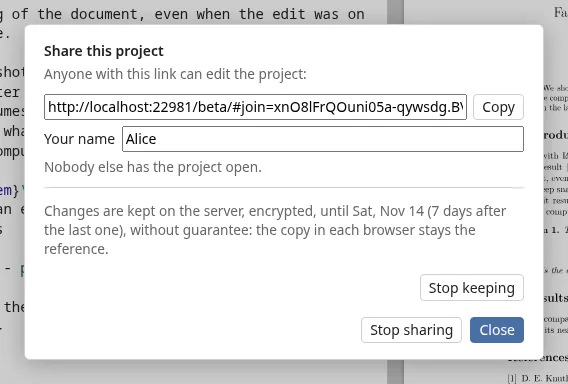
Share, at the top (or Project ▸ Share…), makes a link: anyone who opens it edits the project with you, at the same time, and sees your cursor. Send it as you would a document: whoever has the link can edit.
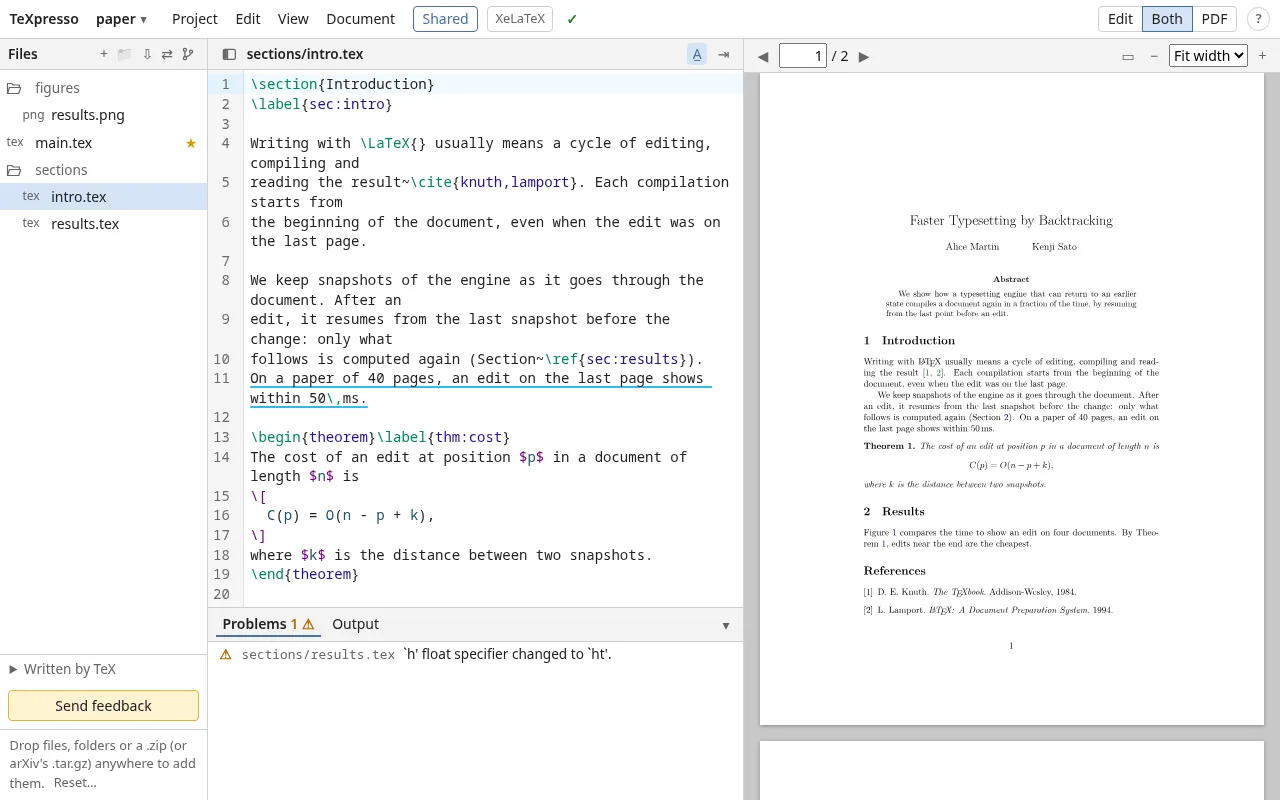
- In the share dialog, set your name, as the others see it, and see who is there. The button at the top says how many are editing: Shared · 3.
- A̲, in the bar of the editor, underlines the text of the others with their color; hover over it (or tap it) to see who wrote it.
- Undo undoes your own changes only.
- Stop sharing keeps the project in this browser as it is; the others keep their copy.
The files go directly from browser to browser, encrypted, while the project is open in both. The server that puts them in touch sees neither the files nor the key of the link. Some company or mobile networks forbid direct connections: two people both on such networks may not see each other.
Changes kept for the absent
Changes go from browser to browser only while both are open. If you work at different times (in different time zones, say), your coauthor would only get your changes the next time you are both online.
So, when the last other person leaves, TeXpresso offers to keep the changes on the server (you can also turn it on in the share dialog). Then:
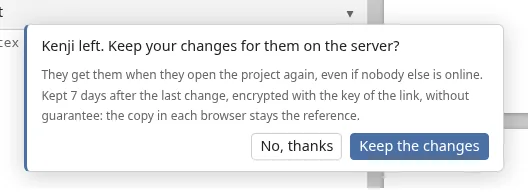
- When you are left alone, your browser stores the changes there after a pause, and when you close or hide the tab.
- Whoever comes back gets them, even if nobody else is online, and is told whose changes arrived; they are underlined with their author's color. Someone opening the link for the first time gets the whole project the same way.
- Changes are kept for 7 days after the last one. The share dialog shows until when, and Stop keeping deletes them from the server, for everyone.
The changes are encrypted in your browser with the key of the link: the server cannot read them. It keeps them without guarantee (it may be full, or down): the copy in each browser stays the reference. A project of more than about 20 MB cannot be kept.
Settings
Project ▸ Settings…. Settings are kept in this browser, and apply at once; most are also in the View menu.
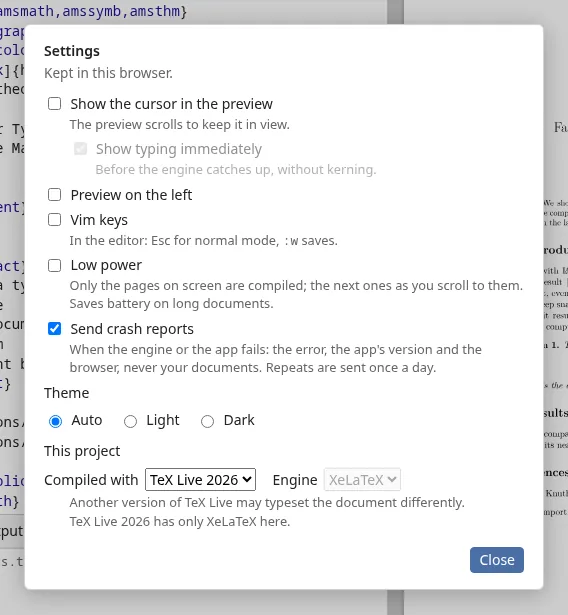
| Setting | What it does |
|---|---|
| Show the cursor in the preview | Shows your cursor (or selection) in the pages, and scrolls to keep it on screen. On by default. |
| Show typing immediately | What you type shows in the pages at once, before TeX catches up (without kerning, until it does). On by default, with the cursor shown. |
| Preview on the left | Swaps the editor and the preview. |
| Vim keys | Vim's modes and commands in the editor: Esc for normal mode,
the mode shown below the text; :w saves at once. |
| Low power | Only the pages on screen are compiled; the next ones when you scroll to them (Export PDF still makes the whole document). Saves battery on long documents. Off by default. |
| Send crash reports | When the engine or the app fails, sends the error, the app's version and your browser's name, never your documents. On by default. |
| Theme | Light, dark, or as your system. |
| Compiled with | The version of TeX Live of this project. Another version may typeset it a little differently; for a shared project, it changes for everyone. |
| Engine | XeLaTeX or LuaLaTeX, for this project (Engines). |
Phones and tablets
On a small screen, the menus gather under ☰, the file list moves into a drawer (the sidebar button, at the top left), and buttons at the bottom choose what to show: Files, Edit or PDF, and on a tablet Both. Buttons of the top bar that do not fit, this manual among them, are under ⋯.
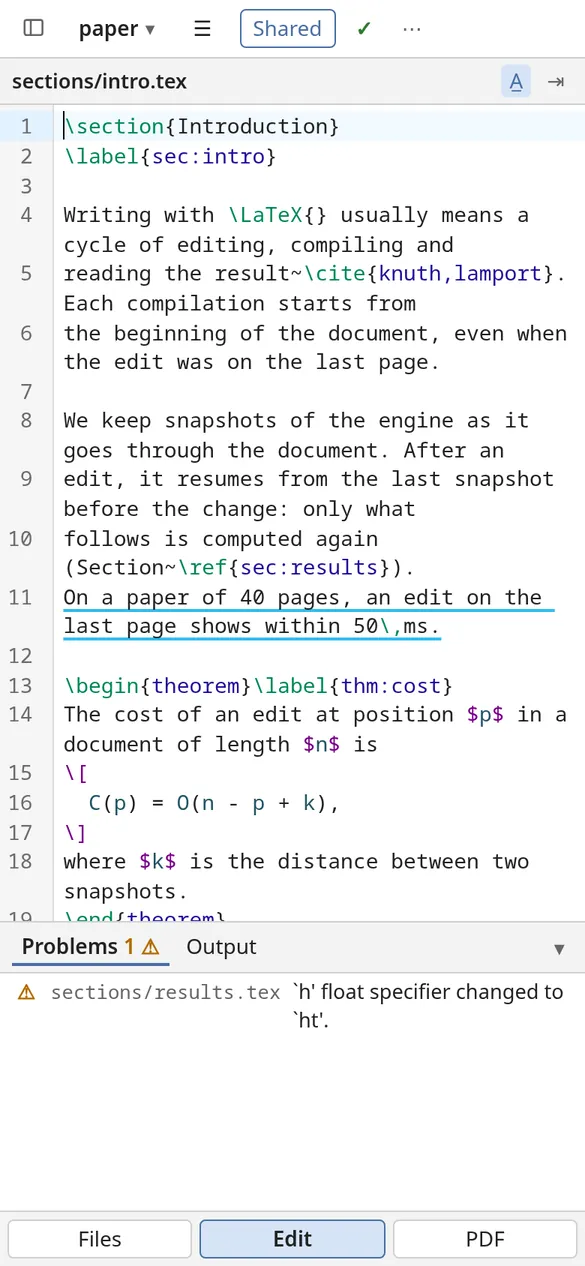
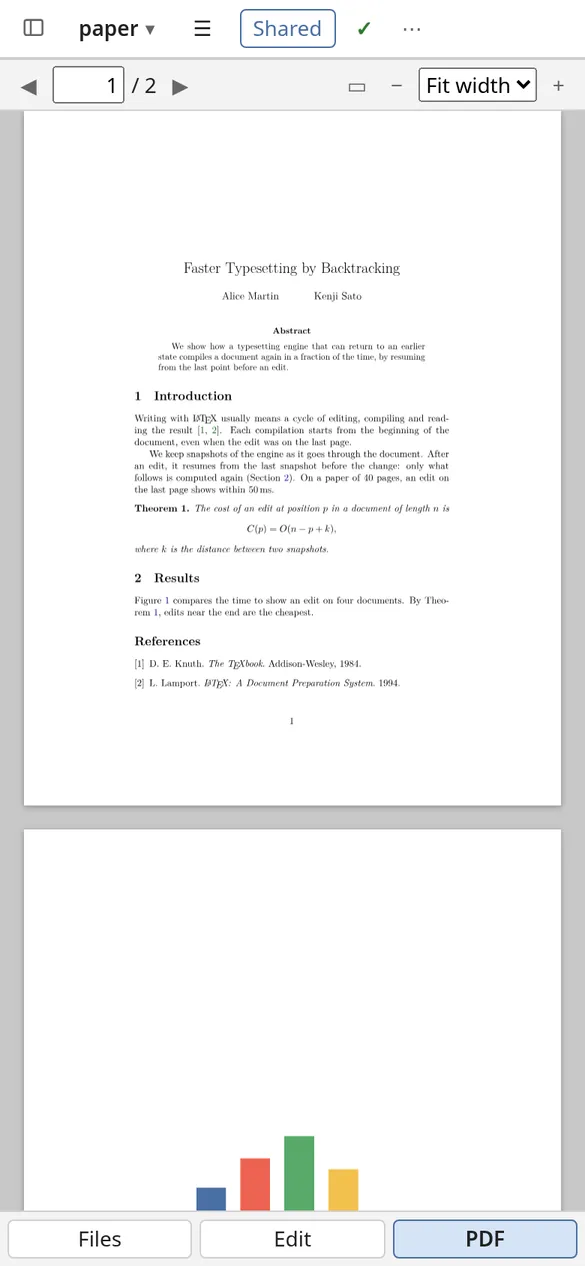
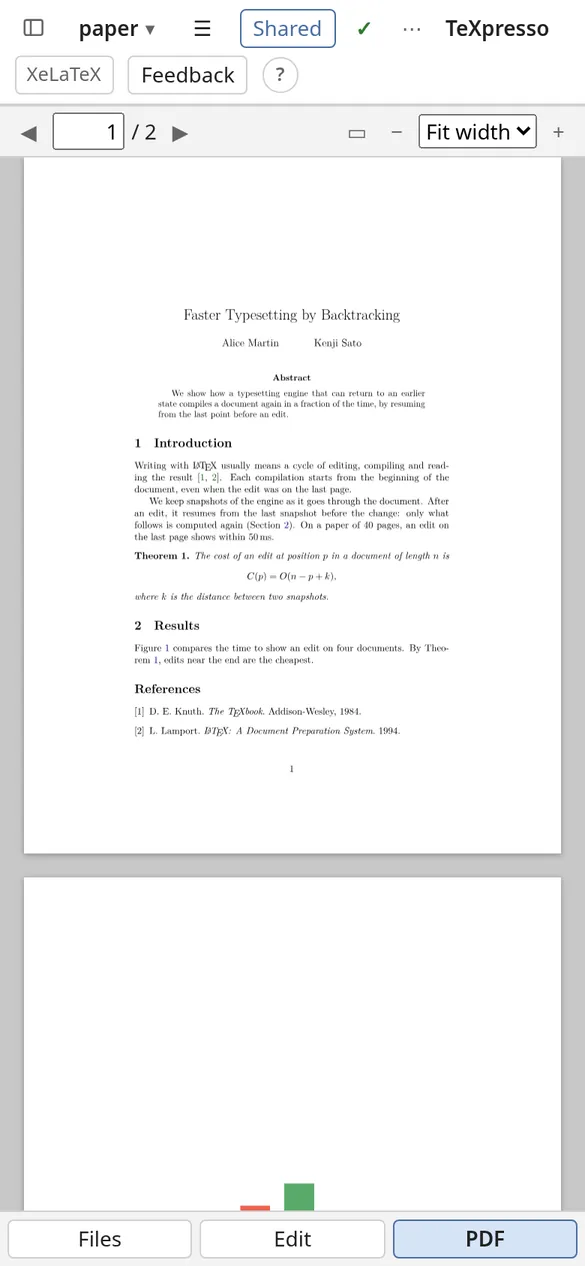
While the on-screen keyboard is open, a row above it has the characters TeX needs and keyboards
hide: \ { } [ ] $ ^ _ & % ~ #. A long press on the preview jumps to the source.
Offline, and as an app
Once opened, TeXpresso works without a connection: projects open, and documents compile with the packages they used before. A package used for the first time needs the connection once.
Where the browser offers it, Install at the top adds TeXpresso to your device as an app, with its own window and icon.
What leaves your browser
Your documents are not sent anywhere, except as you choose:
- Sharing sends your files to the people you share them with, directly and encrypted; if the changes are kept, encrypted on the server too.
- Feedback sends what you write, with the version of the app and of TeX Live, and the name and e-mail you choose to give.
- Dropbox and GitHub, when you link a project to them, get its files, directly from your browser.
- Crash reports send the error, the app's version and your browser's name, never your documents. Turn them off in the settings.
The app downloads TeX Live packages as your documents need them: the server sees which packages are fetched, not your documents.
Limits
- XeLaTeX and LuaLaTeX, no pdfLaTeX. Documents written for pdfLaTeX usually work
with XeLaTeX; those relying on pdfLaTeX-only packages or primitives (font expansion of
microtype, say) may not, or break their lines differently. - No Biber. BibTeX runs by itself (see Bibliographies);
biblatexwith Biber does not: run Biber elsewhere and add the.bblfile to the project. - No external programs: no
makeindex, no shell escape (minted,\write18). - Fonts are those of TeX Live: the fonts installed on your computer are not available.
- Some rare PDF drawing features (complex shadings) may not show in the preview.
- Compiling only what follows an edit needs a browser with WebAssembly JSPI (see below). Other browsers compile the whole document at each change, which is slower on long documents.
JSPI
JSPI (JavaScript Promise Integration) is a recent addition to WebAssembly: it lets TeX, compiled to WebAssembly, pause in the middle of a run, to wait for a file to download or for your next edit, and go on from there. TeXpresso uses it to keep the run alive between edits, and to compile again only from the place of a change. The latest Chrome, Edge, Firefox and Safari have it. Without it, TeXpresso compiles the whole document after each change: it shows a warning once, then (JSPI not available) in the top bar. Updating the browser, or trying another one, fixes it.
Keyboard shortcuts
On a Mac, ⌘ replaces Ctrl.
| Keys | Where | Does |
|---|---|---|
| F10 | Anywhere | The menus: then the arrows, Enter, Esc |
| Alt+Enter | Editor | Show the current line in the preview |
| Click, drag | Preview | Put the cursor there, select |
| Double-click on a link | Preview | Follow it |
| Long press | Preview, touch screens | Jump to the source |
| Ctrl+Alt+G | Editor | Go to line |
| Ctrl+F | Editor | Search and replace |
| Ctrl+Z, Ctrl+Shift+Z | Editor | Undo, redo |
| Ctrl+/ | Editor | Comment or uncomment the lines |
| Tab, Shift+Tab | Editor | Indent, unindent |
| Alt+↑, Alt+↓ | Editor | Move the line up, down |
| Ctrl+D | Editor | Select the next occurrence |
Esc, :w | Editor, with Vim keys | Normal mode; save |
| Arrows, Space, Page Up/Down, Home, End | Slides | Move between slides |
| Esc | Presenting | Leave full screen |
| Enter, Shift+Enter | Feedback | Send; new line |
Help and feedback
TeXpresso is in beta. The Feedback panel, in the corner of the app, is a conversation with us: tell us what works, what does not, what you miss. A few words are enough, and we read every message. If you would like an answer, leave an e-mail.